

Part 1 · Add the connector
Claude organization Owner, once
Connect Claude to Evinced Site Scanner MCP and ask Claude about your accessibility scan results in plain language. An Owner adds the connector once; then each person connects their own Evinced account.
Part 1 · Add the connector
Claude organization Owner, once
Part 2 · Start using it
Everyone, once each
You need the Owner role in a Claude Team or Enterprise organization, an Evinced Site Scanner account, and about 5 minutes.
Every value used in steps 3 and 4. Copy them exactly.
| Field | Value |
|---|---|
| Name | Evinced Site Scanner |
| MCP server URL | https://site-scanner-mcp.evinced.io/mcp |
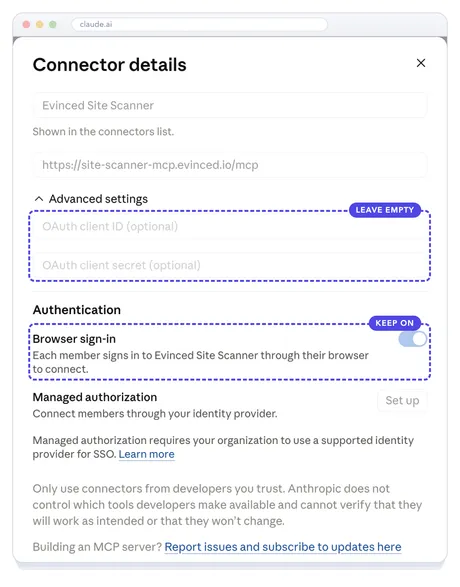
| OAuth client ID (Advanced settings) | Leave empty |
| OAuth client secret (Advanced settings) | Leave empty |
| Browser sign-in | On |
A Claude organization Owner does this once.
Adding a connector for your whole organization takes the Owner role.
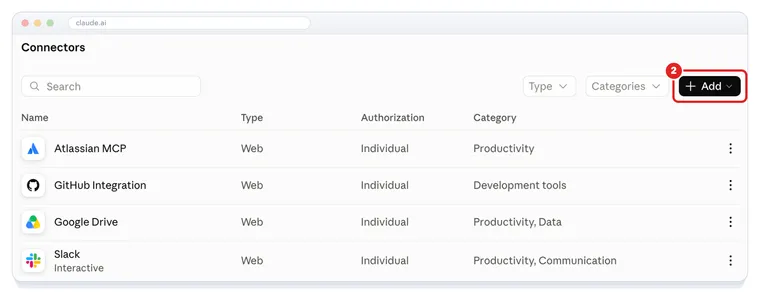
The Site Scanner server is hosted online, so it’s a Web connector.
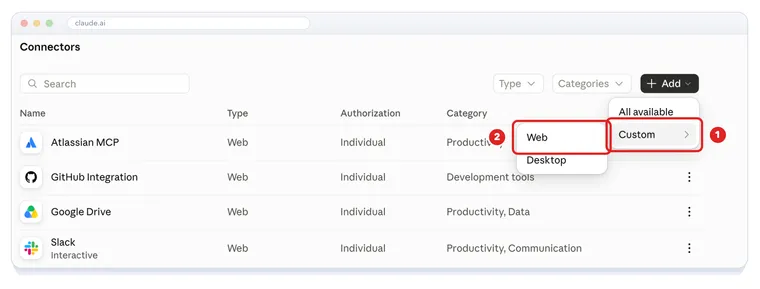
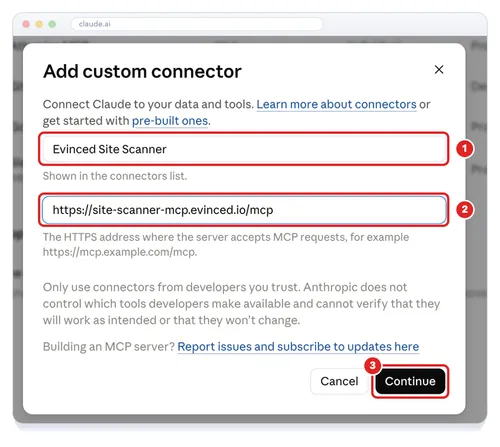
The Add custom connector dialog opens.
Name: Evinced Site Scanner
MCP server URL:
https://site-scanner-mcp.evinced.io/mcpClick Continue.
Claude then shows the connector’s settings. There’s nothing to change.
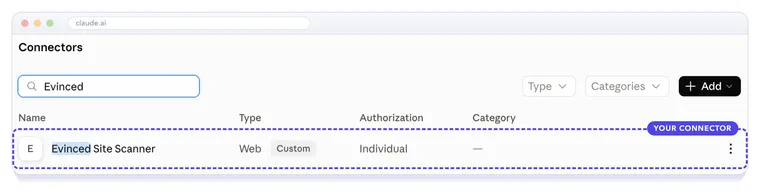
Evinced Site Scanner now appears in your organization’s connectors as a Web, Custom connector.
Everyone does this once, each with their own Evinced account.
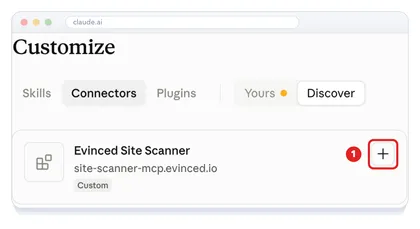
Open Customize › Connectors, search for Evinced Site Scanner, and click + on its card.
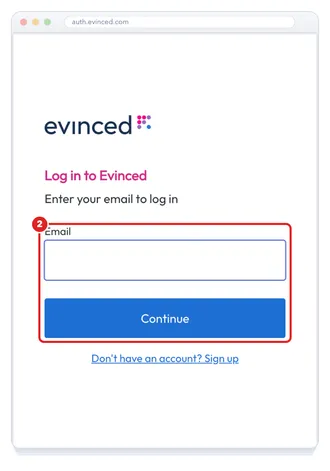
Sign in with your Evinced account.
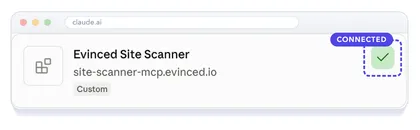
Back in Claude, the card shows a check: you’re connected.
Connectors can be switched on or off for each chat.
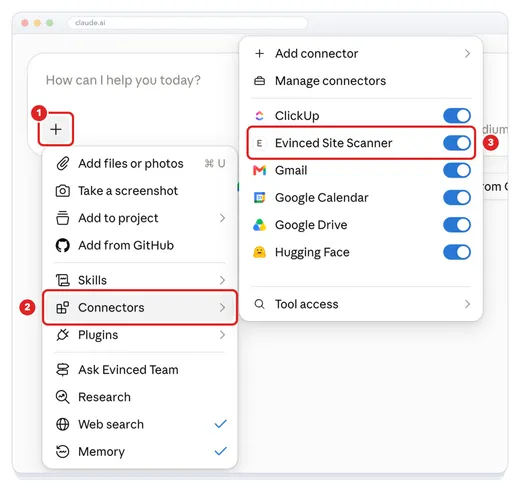
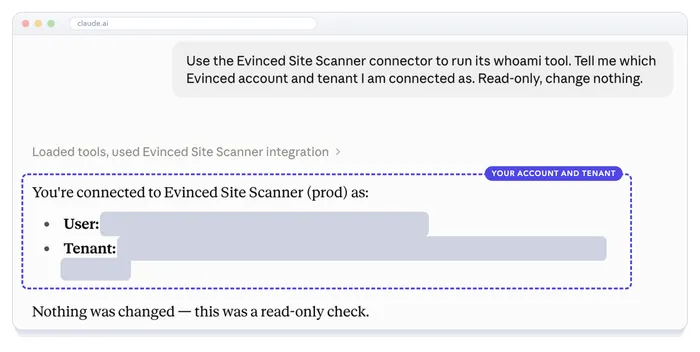
The whoami tool only reads. It’s the quickest way to check which account Claude is using.
Ask:
Use the Evinced Site Scanner connector to run its whoami tool.Claude notes it used Evinced Site Scanner and replies with your Evinced account and tenant.
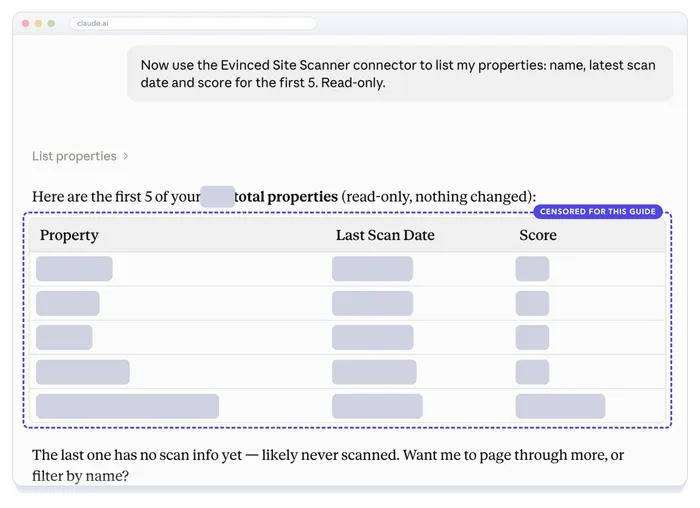
Ask in plain language. Claude picks the Site Scanner tool that fits.
Ask about your sites, for example:
List my Evinced Site Scanner properties with their latest scan date and score.Claude runs the matching tool (here, List properties) and answers from your live Site Scanner data.
| What you see | What to do |
|---|---|
| No “Custom” option when you click Add | Only Owners can add custom connectors to an organization. Ask an Owner to do Part 1. On Pro or Max, add it yourself from Customize › Connectors. |
| Evinced Site Scanner isn’t listed in Customize › Connectors | An Owner hasn’t added it yet, or your role doesn’t have access to it. Ask an Owner to check the connector’s Roles with access. |
| Claude doesn’t use Site Scanner in a chat | Turn the connector on for that chat: + › Connectors › Evinced Site Scanner (step 7). |
| Wrong Evinced account after you connect | Open the connector, choose ⋮ › Disconnect, then connect again. The sign-in asks for your credentials each time. Don’t choose Remove from your team: that removes it for everyone. |
Evinced Site Scanner is ready in Claude. Each person connects their own Evinced account once.