Part 1 · Add the plugin
ChatGPT workspace admin, once
Connect ChatGPT to Evinced Site Scanner MCP and ask ChatGPT about your accessibility scan results in plain language. A workspace admin adds the plugin once; then each person connects their own Evinced account.
Part 1 · Add the plugin
ChatGPT workspace admin, once
Part 2 · Start using it
Everyone, once each
You need an admin or owner role in a ChatGPT Business or Enterprise workspace, an Evinced Site Scanner account, and about 10 minutes.
Every value used in step 3. Copy them exactly.
| Field | Value |
|---|---|
| Custom name | Evinced Site Scanner |
| MCP Server URL | https://site-scanner-mcp.evinced.io/mcp |
| Authentication | OAuth, already selected |
| Advanced authentication settings | Leave as they are |
| Description (optional) | Accessibility scan results |
| Icon (optional) | The Evinced icon, or none |
A ChatGPT workspace admin does this once.
Adding a plugin for your whole workspace takes an admin or owner role.
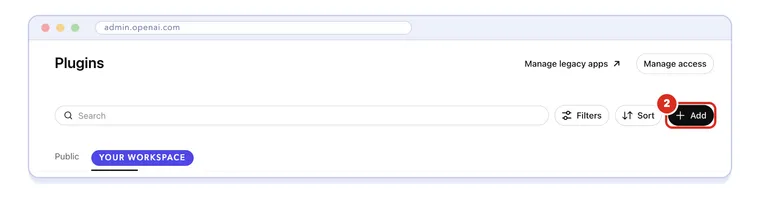
The Site Scanner server is hosted online, so the plugin is made from its URL.
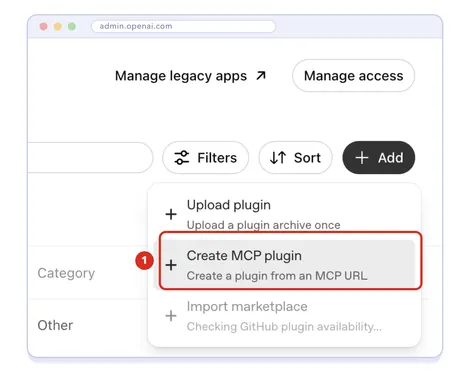
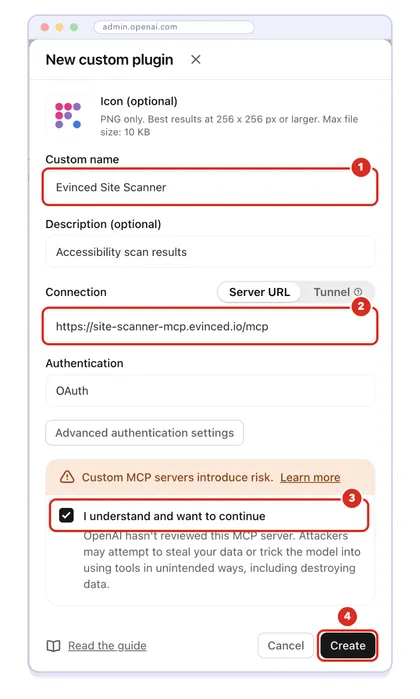
The New custom plugin dialog opens.
Custom name: Evinced Site Scanner
MCP Server URL:
https://site-scanner-mcp.evinced.io/mcpTick I understand and want to continue.
Click Create.
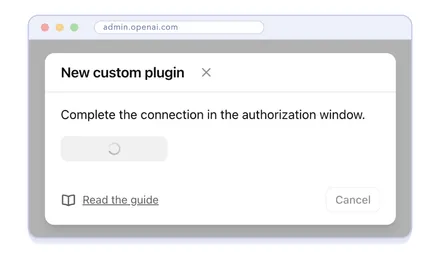
ChatGPT opens an authorization window so it can read the server’s tools.
Sign in with your Evinced account in the window that opens.
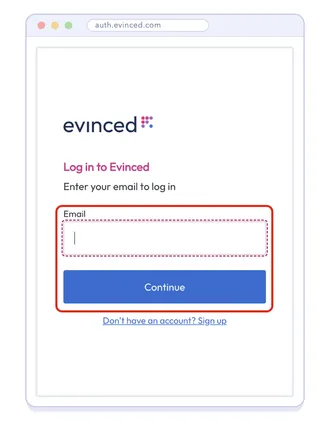
Back in the Admin Console, open Evinced Site Scanner in your workspace’s plugin list.
A new plugin stays switched off until an admin reviews it.
On the plugin’s page, click Review app.
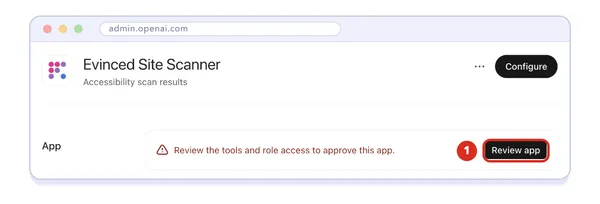
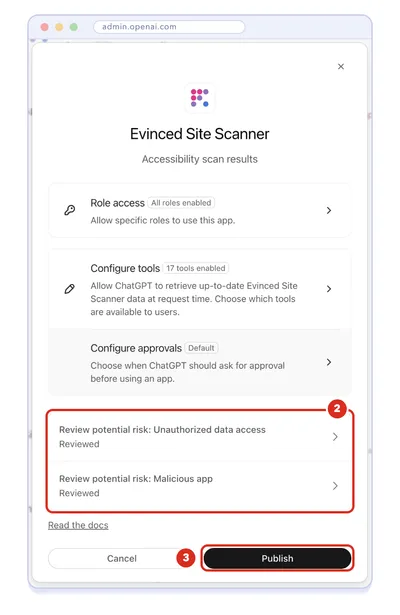
Open each Review potential risk item, tick its boxes and go Back.
Click Publish.
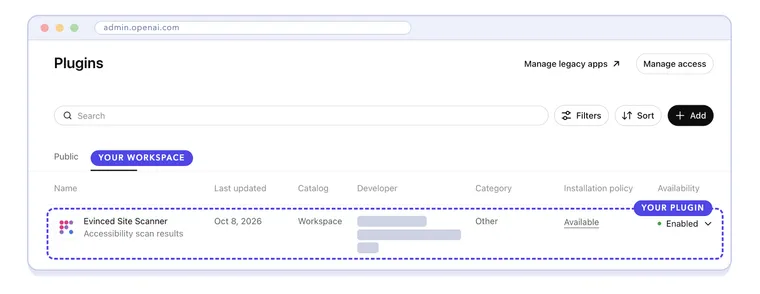
Evinced Site Scanner now shows as Enabled in your workspace’s plugins, available for everyone to install.
Everyone does this once, each with their own Evinced account.
In ChatGPT, open Plugins, choose your workspace’s tab and click + on Evinced Site Scanner.
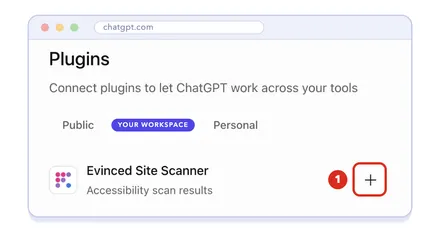
Sign in with your Evinced account in the tab that opens.
Back in ChatGPT, the plugin is installed: you’re connected.
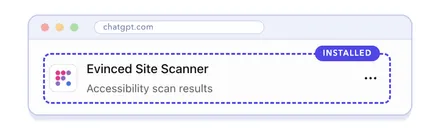
ChatGPT uses installed plugins when they fit. Picking it yourself makes sure.
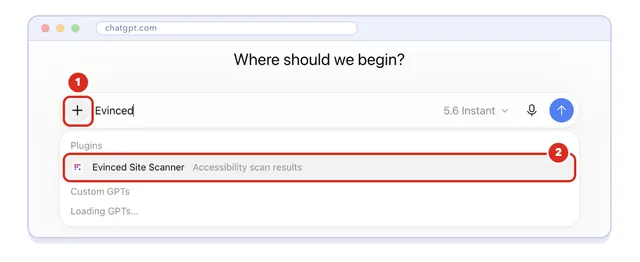
The Who Am I tool only reads. It’s the quickest way to check which account ChatGPT is using.
With the plugin picked, ask:
run your whoami tool.ChatGPT replies with your Evinced account and tenant.
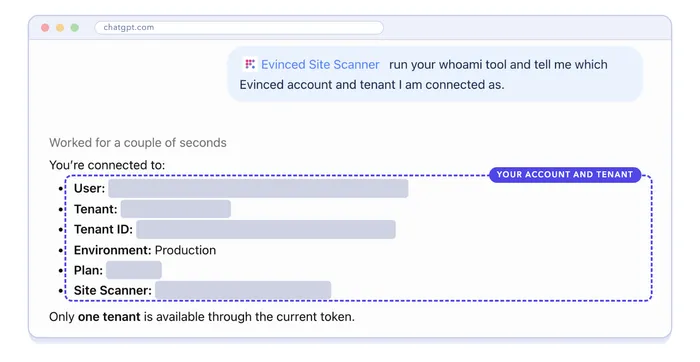
Ask in plain language. ChatGPT picks the Site Scanner tool that fits.
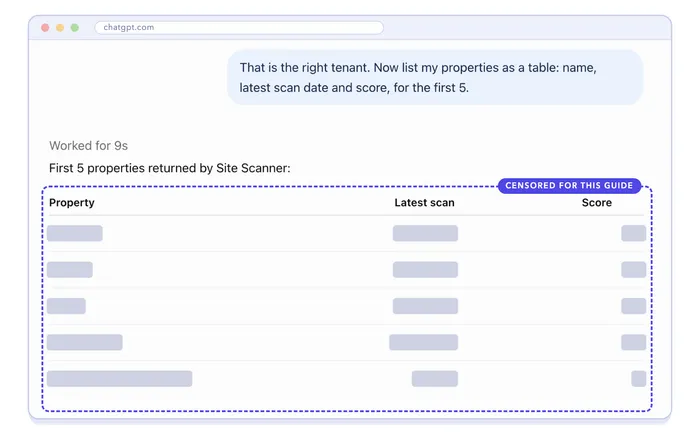
In the same chat, ask about your sites, for example:
List my properties as a table: name, latest scan date and score.ChatGPT runs the matching tool (here, List Properties) and answers from your live Site Scanner data.
The plugin also works where ChatGPT runs tasks. In Work mode, click Plugins under the message box, choose Evinced Site Scanner, and ask as in steps 8 and 9.
| What you see | What to do |
|---|---|
| No “Create MCP plugin” when you click Add | Only workspace admins and owners can add plugins in the Admin Console. On Enterprise, also switch on Create plugins with MCPs under Workspace settings › Permissions & roles. |
| “Could not complete this request” when you click Create | A plugin for the same server URL already exists, for example one you added just for yourself. Delete that one, then create the plugin again. |
| Evinced Site Scanner isn’t listed in Plugins | An admin hasn’t published it yet, or your role doesn’t have access to it. Ask an admin to check the plugin’s Role access. |
| ChatGPT asks you to confirm the tenant | That’s the server’s first check in a new chat. Confirm it, or run whoami first (step 8). |
| Wrong Evinced account after you connect | In Plugins, open ⋯ on Evinced Site Scanner and choose Uninstall, then add it again (step 6). The sign-in asks for your credentials each time. |
Evinced Site Scanner is ready in ChatGPT. Each person connects their own Evinced account once.